
Quick Answer: What Is PDF Management?
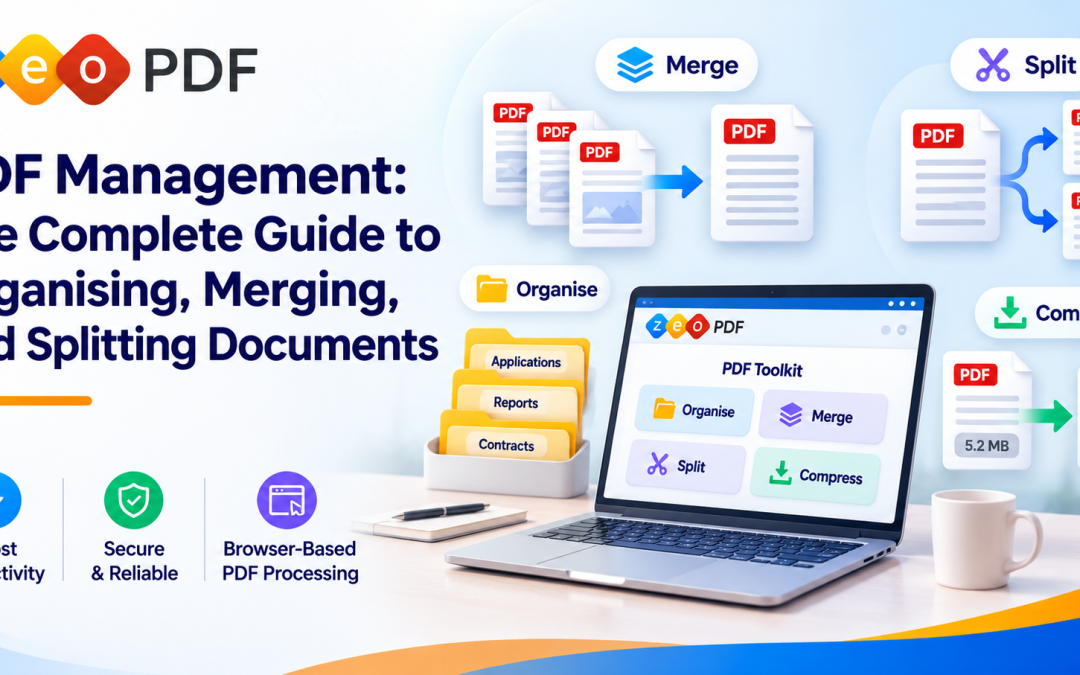
PDF management is the process of organising, preparing, processing, reviewing and securely handling PDF documents. It includes naming files, merging multiple PDFs, splitting pages, compressing documents, extracting information and adding annotations. Good PDF management helps individuals and businesses create consistent documents, find files faster and pick the right tool for each task.
Introduction
An operations team is putting together one application for a client. They receive eight PDFs by email. The file names are things like "scan1.pdf" and "final_new.pdf." Two files contain pages nobody needs and one is too large to upload to the portal.
None of these problems is difficult on its own. Together they waste time and make mistakes more likely. This guide walks you through how to manage PDF files properly: organising them, merging or splitting them, optimising them, reviewing the result and handling everything securely.
What Is PDF Management and Why Does It Matter?
PDF management covers the everyday work of keeping PDF files organised and ready for their purpose. It's what turns a pile of loose files into a clean, usable document.
What Does PDF Management Include?
Most PDF file management involves a handful of core tasks:
- Organising files into folders with clear names
- Merging related documents into one PDF
- Splitting large files or pulling out specific pages
- Compressing files to reduce their size
- Extracting text or images for reuse
- Annotating with highlights, notes or stamps
- Preparing the final document for sharing or submission
Done well, it means fewer unnecessary files, consistent naming, faster retrieval and cleaner documents for whoever reviews them next.
PDF Management vs PDF Editing vs Document Management
These terms are often used interchangeably, but they mean different things.
| Concept | What it means | Example |
|---|---|---|
| PDF management | Organising and processing PDF files | Combining and splitting application documents |
| PDF editing | Changing content or properties inside a PDF | Editing text or rearranging pages |
| Document management system (DMS) | Managing documents across wider organisational processes | Storage permissions, retention, version control and approvals |
PDF document management tools handle the file operations. A full DMS handles the broader lifecycle of records across an organisation. Many teams use both.
How to Organise PDF Documents Efficiently
Good organisation saves time no matter which PDF tool you use. Here are four habits worth building.
Create a Consistent Folder Structure
Group files by client, department, project or document purpose. Keep it simple and predictable. For example:
Client_Applications/
  Client_001/
    01_Identity/
    02_Academic/
    03_Financial/
    04_Final_Submission/
Avoid nesting folders too deeply because it makes files harder to find. Keep drafts separate from final versions so nobody sends the wrong one.
Use Clear File Names and Version Labels
A good naming pattern tells you what a file is at a glance. Try something like:
2026-11_Client001_AcademicTranscript_v02.pdf
This includes the date, the client, the document type and the version. Compare that with "final2.pdf," which tells you almost nothing and invites confusion.
Review Duplicates and Outdated Versions
Duplicate files and old versions build up quickly, especially when several people handle the same documents. Review them regularly and decide who owns each file. Be careful not to delete anything you're required to keep. Archive outdated versions rather than removing them if your records policy calls for it.
Prepare Documents for Their Intended Use
Before you share or submit anything, check:
- Is the document complete?
- Are the pages in the right order?
- Is everything readable?
- Is the file size within any upload limits?
- Does it meet the recipient's requirements?
These four habits are the foundation of PDF organisation. For a deeper look, read our guide on how to organise PDF documents.
How to Merge Multiple PDF Files Into One Document
Merging lets you combine PDF files into a single document that's easier to share and review.
When Should You Merge PDF Files?
Merging makes sense when several files belong together. Common examples include:
- Combining documents for an application package
- Building a business report from separate sections
- Bundling a contract with its attachments
- Assembling supporting evidence into one file
Basic PDF Merging Workflow
- Select the files you need.
- Arrange them in the order you want.
- Merge them using a suitable tool.
- Review the combined PDF page by page.
- Save the final version with a clear name.
How to Avoid Problems When Merging PDFs
A few issues come up again and again when people merge multiple PDF files:
- Wrong page order: Check the sequence before you merge, not after.
- Duplicate pages: The same document sometimes gets added twice.
- Missing attachments: Make sure every required file is included.
- Mixed page sizes: Combining A4 and letter-size pages can look uneven.
- Advanced features: Forms, bookmarks or annotations may not carry over exactly, depending on the tool.
Always review the merged file before sending it. Our guide on how to merge PDF files online goes into more detail.
Ready to combine your files? Merge PDFs with ZeoPDF.
How to Split PDF Files and Extract Specific Pages
Splitting does the opposite of merging. It breaks a PDF into smaller parts or pulls out just the pages you need.
When Should You Split a PDF?
You might need to split PDF files when you want to:
- Separate the chapters of a long report
- Divide a large document into smaller files
- Pull out a single certificate from a bundle
- Share only the pages that are relevant to someone
Basic PDF Splitting Workflow
- Select the source PDF.
- Choose the pages or page ranges you need.
- Split or extract them.
- Review the output.
- Save each file with a descriptive name.
Splitting vs Extracting Pages
These two terms overlap, but there's a useful difference. Splitting usually divides a PDF into several separate files. Extracting usually selects specific pages and creates one new document from them. Different tools use these words in slightly different ways, so check what each option does before you run it.
Learn more in our guides on how to split a PDF into multiple files and how to extract pages from a PDF.
Need to separate pages? Split a PDF with ZeoPDF.
Merge PDF vs Split PDF: Which Operation Do You Need?
Merging combines several files into one. Splitting separates one file into several parts. Here's a quick comparison:
| Factor | Merge PDF | Split PDF |
|---|---|---|
| Purpose | Combine documents | Separate documents or pages |
| Typical input | Multiple files | One PDF |
| Typical output | One combined PDF | Multiple PDFs or selected pages |
| Use case | Building an application package | Pulling out a certificate |
| Key check | Page order | Selected page range |
Many real workflows need both. You might split a long bank statement to keep only the relevant months, then merge those pages with other documents into one submission. See our full comparison of merge vs split PDF.
Other Essential PDF Management Operations
Merging and splitting are only part of the picture. These operations help with file size, readability and review.
Compress PDFs to Reduce File Size
Scanned pages and embedded images can make PDFs surprisingly large. That causes trouble when portals have upload limits or when you're sharing files by email.
Compression reduces PDF file size so documents are easier to upload and share. After compressing, always check that text and images are still clear enough to read. Compress your PDF with ZeoPDF.
Improve the Readability of Low-Resolution PDFs
Sometimes a PDF looks blurry because the original scan was low quality. Upscaling can improve how suitable content looks on screen.
It's important to be realistic, though. Upscaling cannot reliably recreate details that were never captured in the original document. If key information is missing from the source, you'll need a better scan. Explore Upscale PDF to see whether it helps your file.
Extract Text and Images From PDFs
Sometimes you need the content inside a PDF rather than the PDF itself. You might want to extract text from a PDF to reuse in a report or extract images from a PDF for a presentation.
Keep in mind the difference between two types of PDF. Some contain embedded text that can be extracted directly. Scanned PDFs are essentially pictures of pages, and getting text from those usually requires OCR (optical character recognition). Check what kind of file you have before you start. Try Extract Text or Extract Images.
Highlight, Annotate and Stamp PDF Documents
Review work often means marking up documents. You can highlight important passages, add notes for colleagues and stamp documents with labels such as "Reviewed" or "Approved" for internal use.
A stamp is a helpful visual marker, but it is not the same as a legally valid signature or formal approval. Use it as part of your internal process. Explore Highlight & Notes and Stamp Document.
How to Build an Efficient PDF Management Workflow
Each operation works best as part of a clear PDF workflow. Here's a five-step process you can apply to almost any document task.
1. Collect and Review
Gather all the files you need. Check versions, completeness and readability before doing anything else.
2. Organise and Name
Group related documents and apply your naming convention so every file is easy to identify.
3. Merge or Split
Combine related files into one document or pull out only the pages you need.
4. Optimise and Verify
Compress or enhance files where it makes sense, then review the output carefully.
5. Store and Share Securely
Save the final version in the right place and apply suitable access and retention controls. Your PDF tool handles processing, while storage and records management usually sit with your wider systems.
Example: An education consultant receives academic records, identity documents and financial statements from a student. They check each file, rename it clearly, merge the right documents in order, compress the package to meet the portal's limit and review it once more before submitting.
Common PDF Management Problems and How to Solve Them
Most PDF headaches have a straightforward fix. Here's a quick troubleshooting guide.
| Problem | Likely cause | Practical solution |
|---|---|---|
| Too many separate files | Documents collected one by one | Merge related PDFs |
| Wrong page order | Files combined without review | Check the order before merging |
| Large file size | High-resolution images or scans | Compress and check readability |
| Unnecessary pages | Full document shared | Split or extract the pages you need |
| Poor readability | Low-quality original scan | See whether upscaling helps or rescan |
| Outdated versions | Inconsistent naming | Use version labels |
| Text won't extract | Scanned or image-based content | Check whether OCR is needed |
| Unclear file names | No naming convention | Apply a consistent naming pattern |
| Inconsistent submissions | No final review step | Use a preparation checklist |
| Sensitive data exposed | Careless sharing | Apply access and privacy controls |
For more fixes, see our guide to common PDF management problems.
How to Manage PDF Documents Securely
PDFs often contain sensitive information. Think of personal IDs, bank statements, contracts and application materials. How you process and share these files matters.
Browser-Based vs Server-Side PDF Processing
Online PDF tools generally work in one of two ways:
- Browser-based PDF processing: The document is processed on your own device inside your web browser.
- Server-side processing: The document is uploaded to a remote server, processed there and sent back.
Browser-based processing can reduce the need to send document content to a server. Actual privacy and security still depend on how each tool is built. Some popular online tools openly state that they process files on their servers, so it's worth checking how any tool you use handles your documents.
Practical PDF Privacy Considerations
Whatever tool you choose, a few habits help protect your files:
- Read the tool's privacy policy before uploading sensitive documents.
- Limit who can access files in shared folders.
- Share documents only with people who are authorised to see them.
- Store final versions in approved locations.
- Follow any retention rules that apply to your records.
ZeoPDF uses in-browser processing for supported operations, which is designed to keep document content on your device where possible.
PDF Management for Businesses: Practical Use Cases
PDF management for business goes beyond one-off tasks. Here's how different teams use it every day.
HR and Recruitment
HR teams combine onboarding forms into one employee file, extract individual forms when needed and keep employee records organised and consistent.
Education and Immigration Consultancies
Consultants prepare application packages, separate certificates from larger bundles, review financial statements and compress files to meet portal size limits.
Finance and Accounting
Finance teams merge monthly reports, organise invoice attachments and extract specific pages for audits or reviews.
Legal and Administrative Teams
Legal and admin teams assemble contract attachments, prepare supporting records and highlight or stamp documents during internal review.
If your team handles these tasks often, a toolkit built for repeated use can make a real difference to how smoothly the work runs. Read more on how businesses can simplify PDF document organisation.
How to Choose the Right PDF Management Tools
The best PDF management tools are the ones that match how you actually work. Consider these points:
- Operations: Does it handle the tasks you need, such as merging, splitting and compressing?
- File limits and output quality: Can it handle your file sizes and produce clear results?
- Ease of use: Does it work smoothly in your browser?
- Privacy: How does it handle your documents?
- Usage frequency: Does the plan suit how often you process files?
- Credits and top-ups: If it uses credits, how are they used and can you add more?
- Business fit: Is it suitable for recurring team tasks?
It also helps to know the main types of tools:
| Tool type | Best for |
|---|---|
| Single-purpose tools | One quick task, such as compressing a file |
| Multi-tool PDF platforms | Regular work across several operations |
| Desktop applications | Offline work and advanced editing |
| Enterprise DMS | Organisation-wide storage, permissions and retention |
For a detailed buying guide, see choosing PDF management software. Or explore all ZeoPDF tools.
How ZeoPDF Simplifies Everyday PDF Operations
ZeoPDF brings the core PDF operations together in one place with eight tools:
| Tool | What it helps with |
|---|---|
| Compress | Reducing PDF file size |
| Merge | Combining multiple PDFs |
| Split | Separating pages or files |
| Upscale | Improving readability of suitable content |
| Extract Text | Pulling text out of PDFs |
| Extract Images | Saving images from PDFs |
| Stamp Document | Adding stamps for internal workflows |
| Highlight & Notes | Marking up and annotating documents |
Supported operations run in your browser. ZeoPDF uses a credit-based model, with plans that include Zeo credits and the option to buy more when you need them. For businesses with recurring PDF tasks, Pro plans offer a practical way to keep work moving.
PDF Management Best Practices Checklist
Use this checklist to keep your PDF file management on track:
- Use consistent file names
- Keep related documents organised together
- Check file versions before merging
- Review page order
- Extract only the pages you need
- Compress files when appropriate
- Check readability after processing
- Avoid unnecessary duplicate files
- Use suitable privacy and access controls
- Verify the final PDF before sharing
Frequently Asked Questions About PDF Management
What is PDF management?
PDF management is organising, processing, reviewing and securely handling PDF files, including tasks like merging, splitting and compressing.
How do I organise multiple PDF files?
Use a simple folder structure, clear file names with dates and version labels and review duplicates regularly.
How can I merge several PDF documents into one?
Select the files, put them in the right order, merge them with a PDF tool and review the result before saving.
Can I split a PDF into separate files?
Yes. Choose the pages or ranges you want and a split tool will create separate files from them.
How do I extract specific pages from a PDF?
Select only the pages you need and save them as a new PDF using an extract or split tool.
How do I reduce PDF file size?
Use a compression tool, then check that text and images are still easy to read.
Are online PDF management tools secure?
It depends on the tool. Check whether files are processed in your browser or on a server and read the privacy policy before uploading sensitive documents.
What PDF tools do businesses need?
Most businesses need merge, split and compress tools at a minimum. Teams that review documents also benefit from extraction, highlighting and stamping.
Conclusion: Make PDF Management Part of a Consistent Document Workflow
PDF management is about more than individual tools. It's a workflow: organise your files, merge or split them as needed, optimise and review the result and handle everything securely. The right operation always depends on what the document is for.
When these steps become a habit, recurring tasks get faster and mistakes become rarer. Simplify PDF management with ZeoPDF.